
Almost all large Amiibo tournaments require you to submit .bin file of your Amiibo. While extracting your Amiibo’s files can seem like a daunting and confusing task, with the right tools and information, it can become quick and painless.
What is a .bin file?
A .bin file is what makes your Amiibo, well, your Amiibo. The .bin file contains all the information about your Amiibo, including its name, color, personality, spirits, and fighting style. When you send a .bin file to a tournament organizer, it allows them to copy that information and use it like any physical, store-bought, Amiibo.
How do I get my Amiibo’s .bin file?
There are 2 main ways to go about getting your Amiibo’s .bin file, each requiring a different tool.
Method 1: The TagMo app and an Android Phone.
Method 2: Powersaves for Amiibo by Datel
Each Method has its own positives and negatives. The benefit of the TagMo app is that it is free (providing that you already have access to an Android phone). However, while it will allow you to extract the .bin file from your Amiibo, it will not allow you to use the file beyond sending it to tournament organizers. Powersaves unfortunately cost you money ($20 if you can find it at Gamestop, £20 online), but allows you to both save your Amiibo’s files, but also gives you the tools to host your own tournaments and events.
The TagMo app and an Android Phone
Most modern smartphones are equipped with an NFC chip reader. However, only Android phones will allow you to interact with your Amiibo. The TagMo app is the most popular and simple way to use your Android Phone to download your Amiibo’s .bin file, and here is how to use it:
1: Download the TagMo app here: https://github.com/HiddenRamblings/TagMo/releases/tag/2.6.1 Under “Assets,” you’ll find the TagMo2.6.1.apk file, which is the file you need to download.
2: Install the app and allow all permissions.
3: Select “scan tag” option.
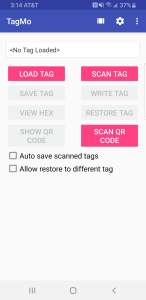
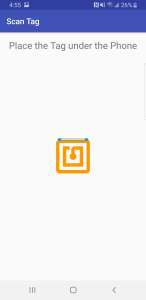
4: Place your Amiibo on the center-back of your phone.
5: Select the “save tag” option and take note of where the file is saved.
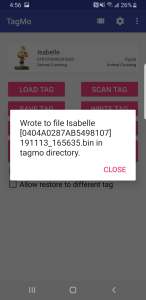
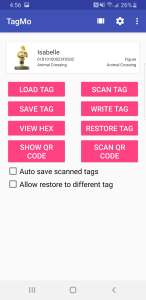
6: Exit the app and enter the “My Files” app.
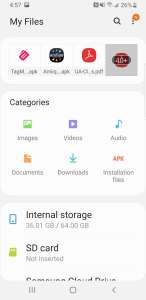
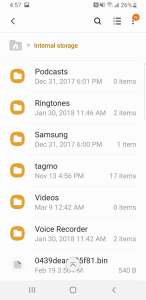
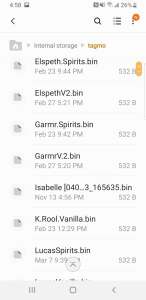
7: Go to “Internal Storage,” and scroll down to the folder for “TagMo.” This is where your Amiibo’s file is accessible from.
Now that you have that file, you can send it to any number of tournaments.
Powersaves for Amiibo
Once you have purchased your “Powersaves for Amiibo” kit, the first thing you need to do is set it up! The packaging should include a guide to get you started. If not, both the Powersaves software and instructional manual can be found at https://www.codejunkies.com/powersaves-for-amiibo/ .

Once everything is downloaded, you can access your files. You can find them by entering the File Explorer, go to the Computer file and enter the “Users” folder. Select your username within that folder and open that folder. Within it, you should find a folder labeled “Powersaves for AMIIBO,” where your newly downloaded Amiibo files will be. From here, you can use these files to submit to any number of tournaments.

